


You may be sitting there thinking, “Okay, how hard can it really be to create a Pinterest board?” The good news is, it’s not hard! But creating a Pinterest board that is optimized for search and encourages Pinterest to push your content out to the right people does require some strategy.
Many people create one board, name it something like “My Blog,” and then pin all their content to it. Unfortunately, this hurts your reach because boards are how the Pinterest algorithm understands your content and pushes it out to the right people.
Learning how to create a Pinterest board takes about 30 seconds, but learning how to create one optimized for search takes a little extra strategy and is exactly what I do for all my Pinterest clients.
Let’s dive in!
What are Pinterest Boards?
I like to think of Pinterest as a filing system. Pinterest boards act like the file folders that house the individual pins (the files). Pinterest boards are how you organize your individual pins (both user-created and third-party pins) and how Pinterest categorizes your content.
Some Pinterest boards may be broad, such as “Healthy Meals” or “Social Emotional Learning.” Other boards may be more specific, such as “Crockpot Chicken Recipes” or “Impulse Control Activities.”
5 Steps to Create a Pinterest Board that is Optimized for Search
When you are using Pinterest as an organic marketing strategy, there’s more involved than simply creating one board that you pin all your content to. I mean, technically you could do that… but as a Pinterest manager and strategist, I definitely don’t recommend it!
Pinterest uses your boards to understand and categorize your content and then ultimately push your content out to the right people (AKA your ideal audience).
This means that it’s super important to give the Pinterest algorithm the right information by using keywords in your board titles and descriptions, and initially pinning relevant third-party content when creating new Pinterest boards!
How to Create a Pinterest Board on Desktop
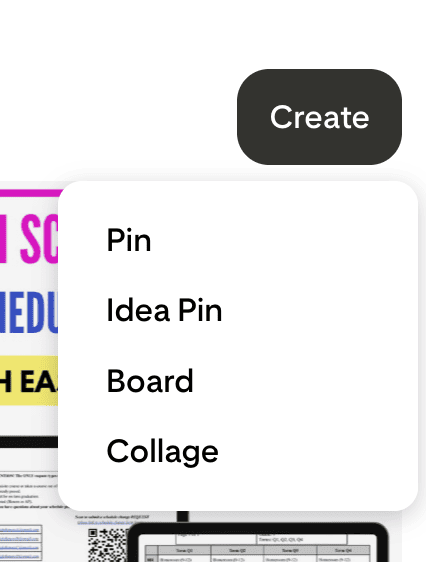
1. From your profile, click “Create” and then click “Board”
2. Give your board a name and select “Make this board private”
When naming your board, use both broad and specific keywords you found during your initial keyword research phase.
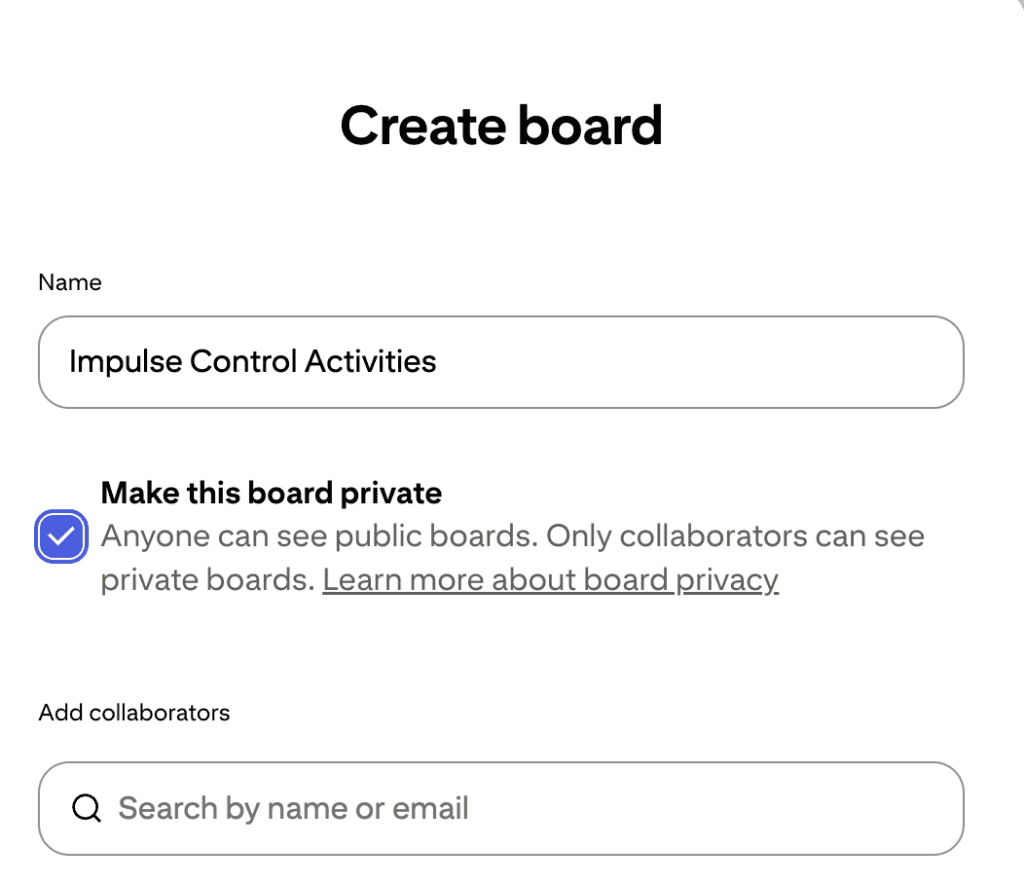
For example, if you have content about pelvic floor physical therapy, you may have a generic board titled “Pelvic Floor Physical Therapy” and then other boards that are more specific, titled “Birth Prep Exercises,” “Pelvic Floor Dysfunction,” and “Prenatal Exercises.”
3. Pin 20-30 third-party pins to your board
After you select “Make this board private,” you will be given the option to pin third-party content to this board.
Third-party content is pins from other users. I generally don’t recommend pinning third-party content all the time; however, it is important during the initial board creation phase because these pins help Pinterest understand what your new board is about.
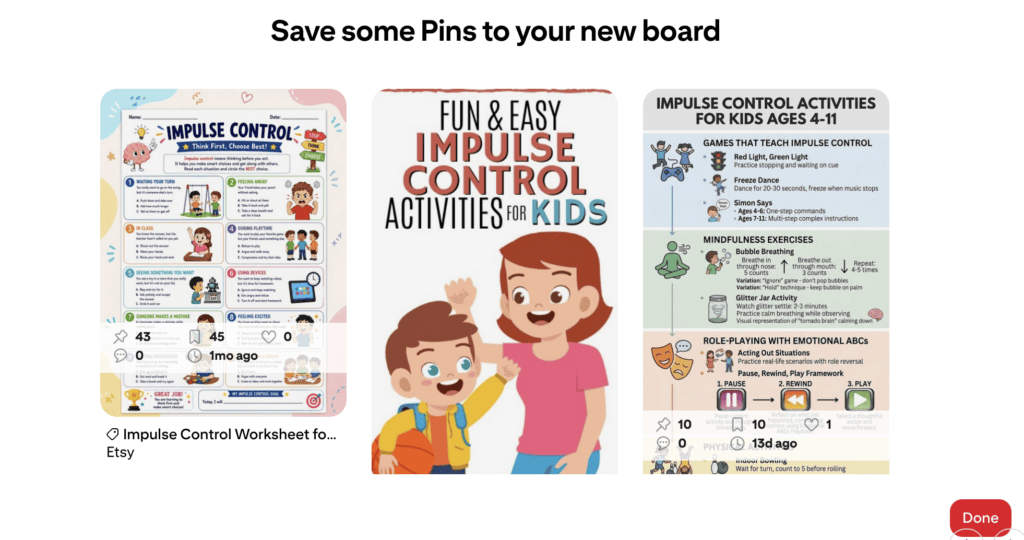
I recommend saving at least 20-30 pins at this time; however, only save pins that are relevant to what your board is about and avoid the following:
- Sponsored pins
- Idea pins (carousels)
- Video pins
- AI-generated pins
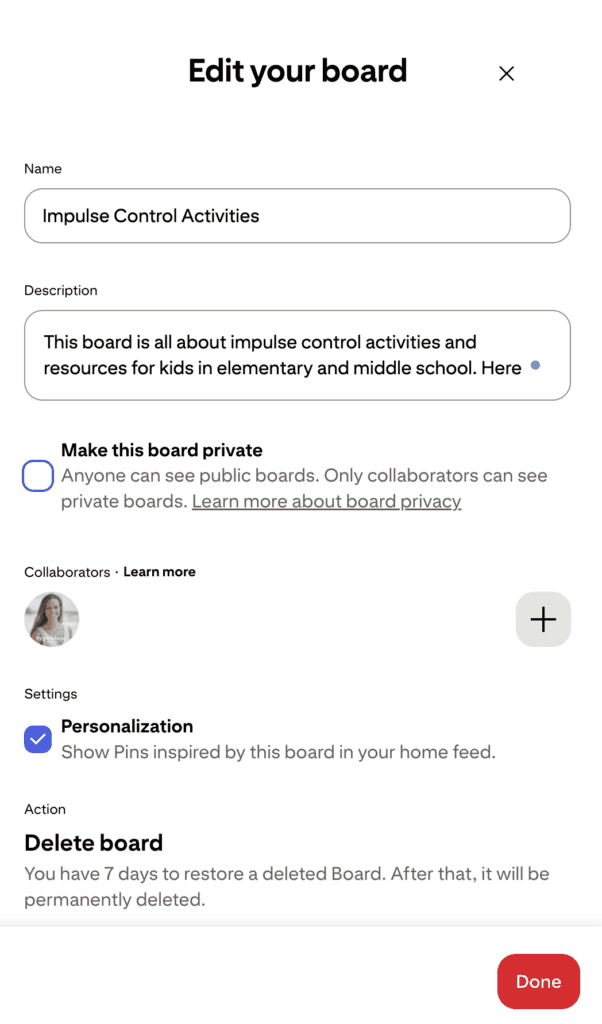
4. Click “Edit info” and add a keyword-rich description
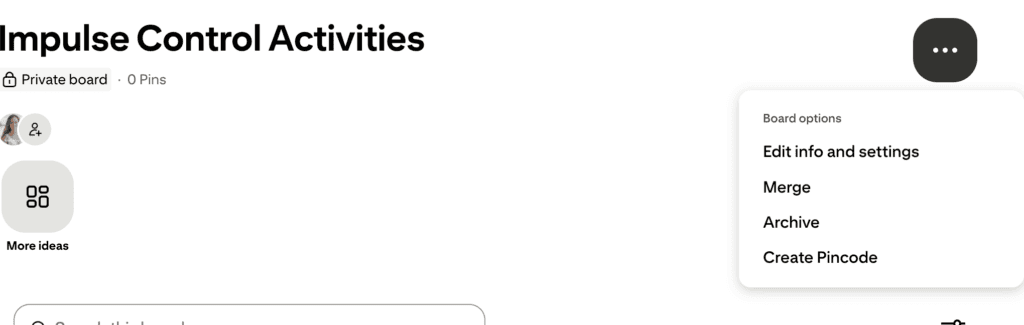
After saving third-party pins, you will go back to your new board and select “Edit board.” Then add your keyword-rich description.
5. Uncheck “make this board private” and click “Done”
How to Create a Pinterest Board on Mobile
The process for creating a Pinterest board on mobile varies slightly and includes terminology differences.
- From your profile, click the + icon in the upper right corner and then select “Board”
- Give your board a name and turn on “Make this board secret”
- Click “Create a board” and then pin 20-30 third-party pins to your new board
- Add a keyword-rich description
After pinning third-party content, click the three dots in the upper right-hand corner and select “Edit info and settings.” Then add a keyword-rich description.
- Turn off “Make this board secret”
Turn off the toggle that says “Make this board secret and then select “Make public.” Save your board by clicking “Done.”
Private vs. Public Boards & When to Use Each
Pinterest boards can be either public or private. Private boards are hidden from public view and can only be accessed by the Pinterest account holder.
Public boards, and the pins within them, are visible to anyone using Pinterest. These are the boards that you will pin your own fresh content to.
How to Make Pinterest Boards Private
If you’re doing an account audit and optimization and find that some old boards are outdated, but you don’t want to delete them, a great option is to make those specific boards private.
I’ve worked with clients who had a mix of both business and personal boards on their account. For SEO purposes, rather than deleting those personal boards, we made them private. This way, their business account could start growing, and their SEO would improve, but they wouldn’t lose their own personal inspiration.
Once you’re inside your account, you can follow these steps:
- Hover over the board you would like to make private
- Click the pencil icon
- Check the box that says “make this board private”
- Click “Done”
How Many Pinterest Boards Should You Create?
When working with a new Pinterest account, or an account that hasn’t been actively used within the past year, I recommend starting slow and only creating one new SEO board per day. This ensures that Pinterest doesn’t flag the spike in activity on your account as “spam.”
The total number of Pinterest boards you have depends on your business and content pillars. When I’m doing an initial account audit and optimization for my Pinterest clients, I make sure they have at least 10 SEO boards before we begin monthly pinning!
Refreshing Old Boards
When it comes to Pinterest strategy for organic reach, creating boards isn’t a one-and-done approach. It’s important to take note of how well your boards and overall account are performing every few months.
If you find certain boards aren’t performing well, or your account as a whole has taken a dip, I suggest refreshing old boards.
The process to refresh old boards is very similar to creating new boards.
- Begin with initial keyword research to determine if renaming the board to a different keyword variation may be helpful
- Edit your board title and description to include the new keyword
- Pin a few relevant third-party pins to your refreshed board
With my Full Service Pinterest Management clients, I do a monthly analytics review to see what is working and what strategy needs to be adapted. Every few months, I will refresh old boards or create new SEO boards.
Creating Pinterest Boards that Work For You
Your Pinterest boards are the foundation of a strong organic marketing strategy, and they require a few simple steps to be optimized for search so the right people find the amazing things you have to offer!
If creating and maintaining SEO boards feels like one more item on your to-do list, I’d love to chat about my Pinterest services and how I can support your organic marketing strategy!


